


If you use Google Tag Manager as I do, you may start noticing some changes in how your containers looks like. Don't be panic! It's a good change and I'll explain you what changes, why and how to deal with it.
On August 20, 2026, Google announced a series of updates designed to bring the Google tag and Google Tag Manager closer together, simplify the interface, and improve the way Google-related measurement is configured and managed.
One of the most noticeable changes for existing GTM users will be an option to optimize a Tag Manager container.
But there is an important detail: the new experience is not appearing in every container at the same time.
As of late August 2026, some GTM containers still show the familiar interface with Tags, Triggers, Variables, Folders, and Templates directly in the main navigation, with no optimization banner or new Settings section. That's my case at August 28th when I'm writing this.
If that is what you see, there is nothing wrong with your setup.
Your container simply has not received the new optimization experience yet.
And when the option does appear, there is no need to click it immediately.
Google confirms that the optimization is optional, that existing containers will not be modified automatically, and that users can review the changes before publishing them.
So what is actually changing?
Let’s break it down.
Google Tag and Google Tag Manager Are Becoming More Unified
To understand the update, it helps to distinguish between the Google tag and Google Tag Manager.
As you may know, the Google tag is the tagging technology used by Google products such as Google Analytics and Google Ads to collect and send measurement data.
Google Tag Manager is a broader tag management system that lets you configure tags, events, triggers, variables, third-party scripts, and other tracking functionality from a web interface instead of editing the website every time.
Historically, they have been related but distinct systems and now, Google is bringing them much closer together.
Under the new architecture, Google says existing Google tags will be upgraded into fully capable Google Tag Manager containers.
That means websites currently using a Google tag without GTM will gain access to Tag Manager features such as its visual interface, debugging tools, and version control.
Importantly, Google says this upgrade will not change the existing in-page behavior of those Google tags.
For businesses already using Google Tag Manager, however, the change works a little differently.
Existing GTM containers may be offered an optional optimization process that reorganizes Google-related settings and changes how the container communicates with Google destinations such as Analytics and Ads.
A New Google Tag Manager Interface Is Rolling Out
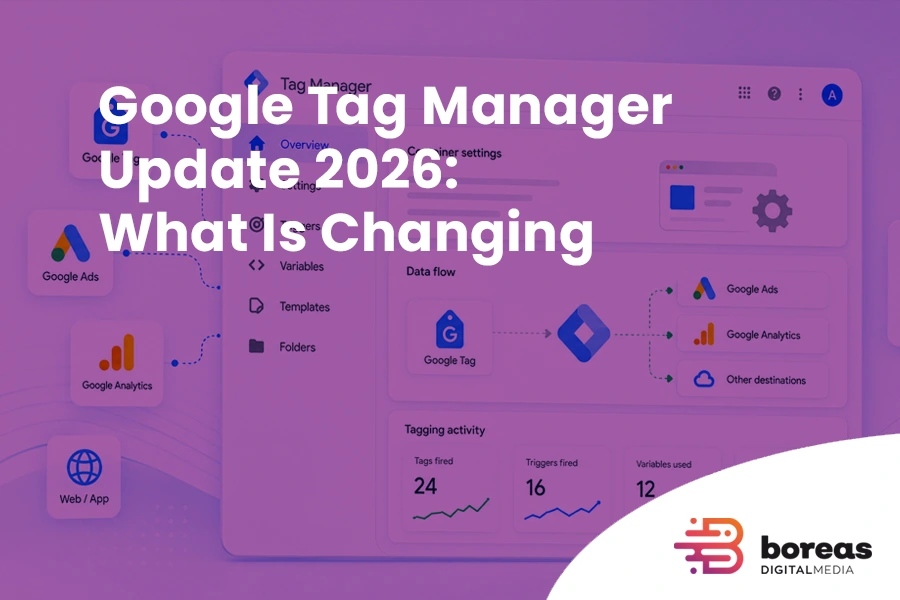
Google is also redesigning the Tag Manager Overview page.
Once the new interface is available for a container, Google says it will introduce two notable sections.
Settings
A centralized area for settings that apply across the container.
Advanced
A collapsible section containing familiar GTM features including:
- Triggers
- Variables
- Templates
- Folders
Google is not removing those features.
It is reorganizing the interface so that common configuration is easier to access while the more technical parts of Tag Manager remain available when needed.
However, the redesigned interface is not yet visible in every existing container.
So if you still see Triggers, Variables, Folders, and Templates directly in the left-hand navigation, you do not need to do anything.
Continue using GTM normally until the new experience becomes available.
What Does “Optimize Your Google Tag Manager Container” Mean?
This is probably the most important part of the update for existing GTM users.
Google says eligible users will be prompted to optimize their containers through an optimization banner.
If you have Edit, Approve, or Publish permissions, you will be able to start the optimization process from that banner.
Nothing happens automatically.
And completing the optimization flow does not immediately publish the changes to your website.
Google says you will first be able to review the proposed changes inside your workspace before deciding whether to publish them.
The optimization focuses primarily on three areas.
1. Google Tag Settings Become Easier to Manage
Google-related configuration will move into the new Settings section.
That section will contain container-wide settings together with a data flow map showing the Google destinations to which those settings apply.
For example, you may be able to see more clearly how a GTM container connects with a Google Analytics property or Google Ads destination.
Google also states that existing event tags remain unchanged during this process.
That is an important distinction.
Optimizing the container is not the same as rebuilding your tracking from scratch.
2. GTM Can Communicate More Directly With Google Destinations
There is also a technical change behind the scenes.
Previously, Google Tag Manager could load an additional gtag.js JavaScript layer when sending data to a Google destination.
Under the new architecture, Google says Tag Manager containers will be able to send data more directly to those destinations.
According to Google, removing that intermediate layer can reduce latency in measurement transmission and improve performance.
This is a useful improvement.
However, it should not be interpreted as a magic website-speed optimization.
The actual impact will depend on the existing tagging setup, the number of scripts being loaded, and how the website is configured.
It is primarily an improvement to Google's tagging architecture rather than a replacement for broader website performance optimization.
3. Google Account Connections Become More Visible
The optimization can also establish links between the Tag Manager container and the Google destination accounts that receive its data.
Google says these account links are created automatically during the optimization process, with Read access granted by default.
Permissions can then be adjusted through Tag Manager's user management settings.
For a small business using one Google Analytics property and one Google Ads account, this may be straightforward.
For larger or older setups, however, it deserves more attention.
A GTM container may have passed through several agencies or developers and could be connected with multiple Analytics properties, Google Ads accounts, conversion IDs, or legacy configurations.
That is one reason it makes sense to review the existing setup before accepting any architectural change.
What Happens to Your Existing Tags?
For a properly maintained container, the update should not require rebuilding the tracking implementation.
Google explicitly states that existing event tags remain unchanged when a Tag Manager container is optimized.
But real GTM containers are not always perfectly clean, at least mine ones 🙂
Over time, you may accumulate:
- Old Google Analytics tags
- Google Ads conversion tags
- Duplicate tags
- Conversion Linker tags
- Meta Pixel or other third-party scripts
- Consent Mode configuration
- Tags created by previous agencies
- Multiple Analytics properties
- Multiple Google Ads accounts
- Tags that are no longer used
- Hard-coded tracking outside GTM
None of those things automatically means something is wrong.
But if you do not know why a tag exists, where it sends data, or whether it is still required, an interface migration is a good excuse to find out and clean your containers.
Should You Click “Optimize” as Soon as the Banner Appears?
I would not.
Not because Google's update appears dangerous, but because changing a measurement configuration without understanding its current state is rarely a good idea.
Google itself gives users the ability to preview the optimization before publishing it.
That is a feature worth using and the safer approach is simple:
Review first. Optimize second.
This becomes particularly important for websites that have been online for several years or that have been managed by different developers, agencies, or marketing teams.
Before changing anything, I would want to know:
- Which Google Analytics property receives the website data?
- Which Google Ads accounts receive conversion data?
- Which conversions or key events are currently being tracked?
- Are any tags duplicated?
- Are there old tags that are no longer needed?
- Is tracking also installed directly in the website outside GTM?
- Does the site use Consent Mode?
- Are important forms, calls, purchases, bookings, or other conversions working correctly?
Once you understand the current implementation, the optimization becomes much easier to evaluate.
A Safer Process for Updating Your GTM Container
When the optimization option becomes available, I would use a workflow similar to this.
1. Review the Current Container
Start by checking the existing Tags, Triggers, and Variables.
Pay particular attention to Google Analytics and Google Ads IDs.
You do not necessarily need to understand every technical detail, but you should at least know which platforms are receiving information and which events matter to the business.
2. Export the Current Container
Before making structural changes, create a backup.
Google Tag Manager allows you to export a container configuration as a JSON file.
Exported containers can be stored, compared, modified, or imported back into Tag Manager later.
This does not replace GTM's own version history, but it gives you an additional snapshot of the configuration before the change.
3. Test Important Tracking Before the Update
Before optimizing the container, establish a baseline.
Test the actions that matter most to the website.
Depending on the business and the marketing and SEO strategies it uses, that could include:
- Contact form submissions
- Phone number clicks
- Purchases
- Appointment bookings
- Quote requests
- Newsletter signups
- Important button clicks
GTM's Preview mode connects the website with Tag Assistant and allows you to inspect which tags fire, when they fire, and what data they process.
Knowing what works before the update makes it much easier to identify a problem afterward.
4. Start the Optimization Process
Once the banner becomes available, you can start Google's optimization flow.
Review the proposed changes rather than treating the process as a simple “Next, Next, Finish” wizard.
Pay particular attention to:
- Google destinations
- Analytics properties
- Google Ads accounts
- Container-wide settings
- Account links
If something looks unfamiliar, investigate it before publishing.
5. Use Preview and Tag Assistant Again
After the optimization is added to your workspace, test the draft configuration before publishing it.
Google Tag Manager Preview mode allows you to browse the website as though the current workspace changes were already live, without exposing those changes to normal visitors.
Repeat the same tests you performed before the optimization.
Make sure the important tags still fire when expected.
6. Check the Destination Platforms
GTM tells you whether a tag fired.
It is also a good idea to verify that the receiving platform is actually seeing the data.
For Google Analytics, for example, events can be checked using tools such as Realtime and DebugView.
For important Google Ads conversions, verify that the intended conversion configuration is still connected correctly.
7. Publish and Document the Change
Once everything has been verified, publish the workspace.
Create a clear version name and description so you can understand later what changed and why.
Something simple such as:
Google Tag / GTM optimization – August 2026
is far more useful six months later than an unnamed version.
The basic process is therefore:
Review → Backup → Test → Optimize → Preview → Verify → Publish
What If You Don't See the Optimization Banner?
Nothing needs to be fixed.
This is particularly relevant while the new GTM experience is still rolling out across existing accounts and containers.
If your current Workspace still shows the traditional GTM navigation and there is no optimization banner, continue using the container normally.
Your existing tracking does not stop working simply because the new optimization workflow is not yet available.
When Google makes the option available for your container, you can evaluate it then.
There is no benefit in trying to force the change prematurely.
There Is Also a Change to New Tag Deployment
Google has announced another technical change as part of the new architecture.
New deployment snippets will become standardized and will no longer contain the traditional gtag config command.
Google recommends configuring initialization behavior through GTM's initialization mechanism instead.
For most small business owners, this is not something they need to act on personally.
However, developers maintaining older or unconventional implementations should be aware of it, particularly if configuration depends on manually implemented gtag() commands outside Tag Manager.
It is another reason legacy tracking setups deserve a review rather than assuming every old implementation will behave exactly like a modern one.
Google Is Also Introducing Visual Tagging
The August announcement includes another interesting feature: Visual tagging.
The goal is to allow users to define events and conversions by selecting elements directly on a website instead of manually configuring all the technical selectors and triggers.
The system then handles much of the underlying configuration.
At the time of writing, Google says Visual tagging is available in beta for purchase conversions in Google Ads, with additional use cases planned to roll out progressively.
This could eventually make basic conversion tracking easier for users who do not work with Google Tag Manager every day.
But easier configuration does not remove the need for a measurement strategy.
Knowing what should be measured and why is still more important than knowing which button creates the event.
Is the Google Tag Manager Update Good News?
Overall, yes.
Google's tagging ecosystem has become increasingly interconnected over the years, and bringing the Google tag and Google Tag Manager into a more unified architecture should simplify configuration and make relationships between containers and Google destinations easier to understand.
The ability for GTM to communicate more directly with Google destinations is also a logical technical improvement.
And giving users the opportunity to preview the optimization before publishing it is exactly how a change like this should work.
But simplification does not mean you should stop paying attention to your tracking setup.
If your GTM container is clean and well documented, the optimization may be straightforward.
If it contains years of old tags, multiple accounts, duplicate configurations, or tracking you no longer understand, the best first step is not clicking Optimize.
It is finding out what is already there.
So when the new Google Tag Manager optimization banner eventually appears in your account, there is no reason to panic — and no reason to rush.
Review the current setup.
Make a backup.
Test your important events and conversions.
Review Google's proposed changes.
Test again.
And publish only when you know your measurement is still working as expected.
The tools may be getting simpler.
Good measurement still requires knowing what you are measuring and where that data is going.